

Blog
How to Make Custom Cricut Shirts with SVG Files (Step-by-Step + Free Design)

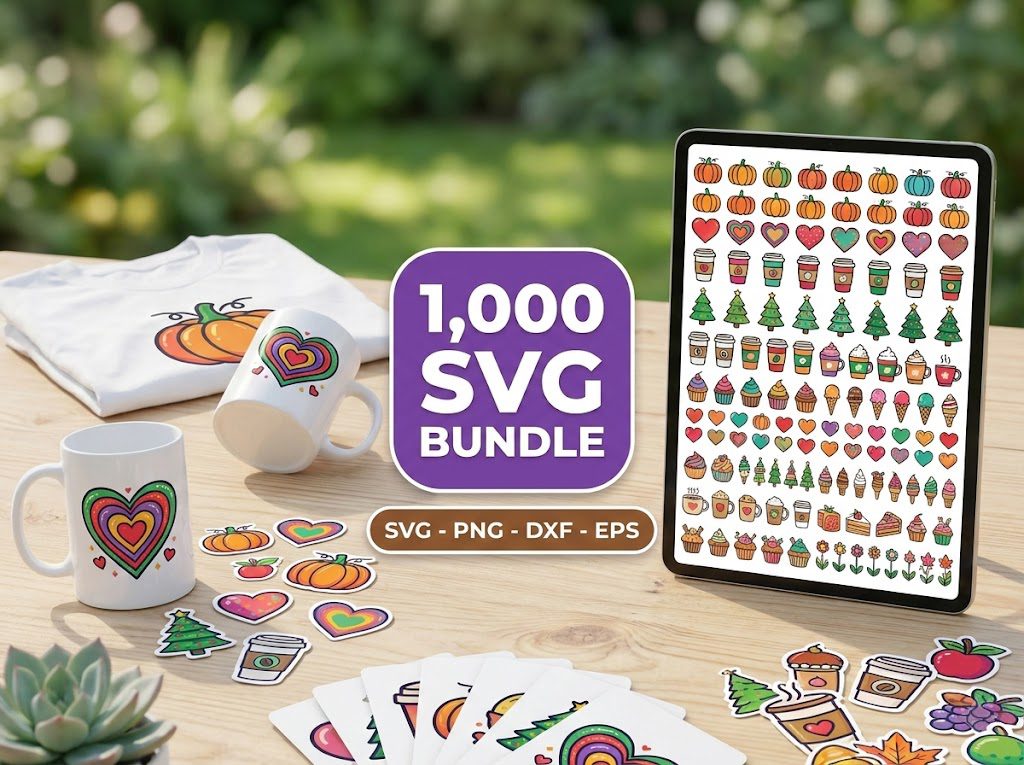
Last week, I spent hours struggling to make custom t-shirts for my daughter’s dance team. After three ruined shirts and nearly giving up, I finally cracked the code on how to make Cricut shirts SVG designs perfectly every time. If you’ve ever wondered why your iron-on vinyl isn’t sticking or why your designs keep peeling, you’re in the right place.
As BundleArtSVG’s senior content writer and a Cricut crafter with 5+ years of experience, I’ll share my exact process for creating professional-quality custom shirts using SVG files. Let’s turn your t-shirt ideas into reality!
Essential Materials & Tools
Before we dive into how to make Cricut shirts SVG designs, gather these supplies:
- Cricut machine (Maker, Explore, or Joy)
- Heat Transfer Vinyl (HTV)
- T-shirt (100% cotton recommended)
- Cricut EasyPress or household iron
- Weeding tools
- SVG design files
500,000+ Ultimate SVG Mega Bundle
Only $29.99
4.96/5 stars from 26 reviews — the most complete SVG library for Cricut crafters. Just $0.000059 per file.
Finding & Preparing Your SVG Design
Step 1: Choose Your SVG Design
Start by selecting a high-quality SVG file from our collection of SVG files for Cricut. For beginners, choose a single-color design before attempting complex layered projects.
- Look for designs labeled “Cricut-ready” or “machine-compatible”
- Check the design dimensions to ensure they fit your shirt size
- Download and save the SVG file to your computer
Step 2: Upload to Cricut Design Space
Open Cricut Design Space and upload your SVG file:
- Click “Upload” then “Upload Image”
- Select “Vector Upload” for SVG files
- Choose your saved SVG file
- Add to your canvas
Cutting HTV with Your Cricut
Step 3: Prepare for Cutting
Set up your material and machine properly:
- Place HTV shiny side DOWN on the mat
- Select “Mirror” in Design Space
- Choose “Heat Transfer Vinyl” as your material
- Use “More” pressure setting for clean cuts
Step 4: Weeding Your Design
After cutting, carefully remove excess vinyl:
- Start from a corner and work systematically
- Use the weeding tool for small details
- Keep the carrier sheet intact
4000+ Magical Mega SVG Bundle
Only $7.99
5.00/5 stars — 4,000+ designs for just $0.002 per file.
Advanced Layering Techniques
Creating multi-colored designs requires careful planning and proper layering:
- Start with the bottom layer first
- Press each layer for 3-5 seconds
- Allow to cool completely between layers
- Final press for 15 seconds to secure all layers
Care Instructions
To make your custom shirts last longer:
- Wait 24 hours before first wash
- Turn the shirt inside out
- Wash in cold water
- Avoid fabric softeners
- Air dry or use low heat
🎁 Get FREE Designs Today!
Expand your free file collection with even more no-cost SVG designs.
Troubleshooting Common Issues
Design Not Cutting Properly
- Check mat adhesion
- Verify pressure settings
- Ensure blade is clean
- Replace dull blades
Vinyl Not Sticking
- Confirm temperature settings
- Check pressing time
- Ensure even pressure
- Pre-heat shirt to remove moisture
Frequently Asked Questions
What temperature should I use for HTV on cotton shirts?
For cotton shirts, set your EasyPress or iron to 315°F (162°C). Press for 30 seconds with firm pressure, then peel the carrier sheet while hot.
Why won’t my SVG file upload to Cricut Design Space?
Common issues include incompatible file formats or complex designs. Ensure you’re using a clean SVG file from a trusted source like our Free SVG Files Collection.
How do I prevent my HTV from peeling after washing?
Wait 24 hours before washing, use cold water, avoid fabric softeners, and turn the shirt inside out. Always air dry or use low heat in the dryer.
What’s the best t-shirt material for HTV?
100% cotton is ideal for HTV applications. Cotton-polyester blends also work well, but avoid materials with less than 50% cotton content.
How long does HTV last on shirts?
With proper care, HTV can last 50+ washes. Following our care instructions will maximize the lifespan of your custom shirts.