

Blog
How to Download and Use Digital Files (SVG PDF PNG) Complete Guide

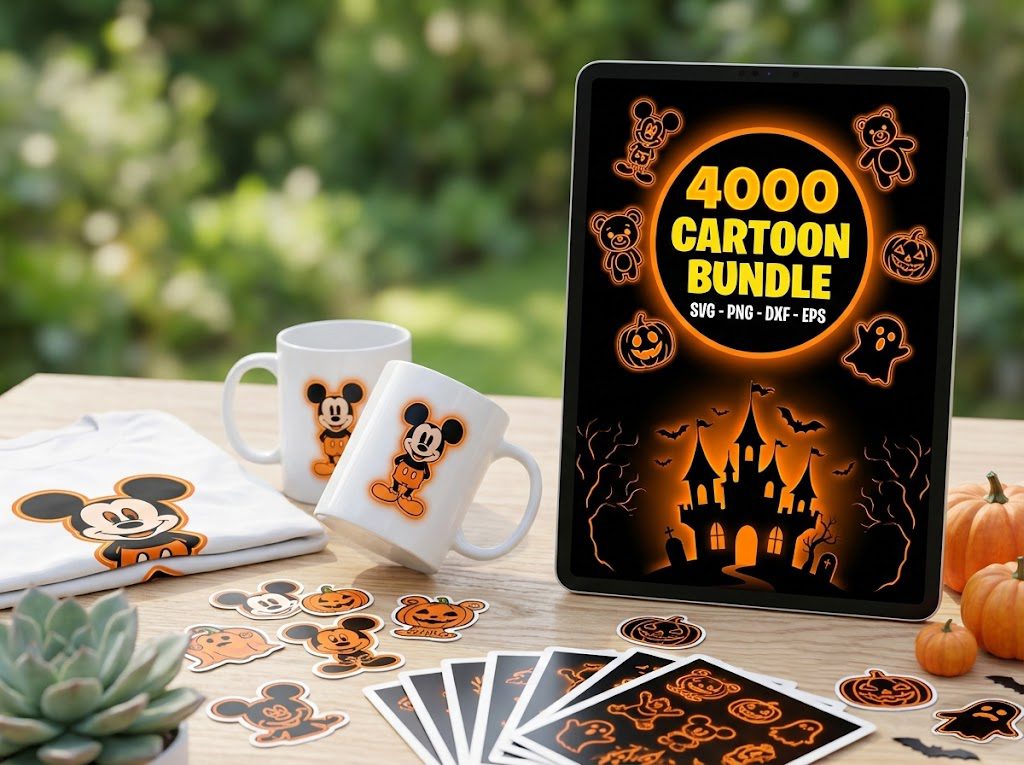
Last week, I spent hours trying to figure out how to download digital files SVG for my new Cricut machine. After clicking endless broken download links and battling confusing websites, I nearly gave up. Sound familiar? Don’t worry – I’ve created this clear, step-by-step guide to help you avoid the frustration I experienced.
What Are SVG Files?
SVG (Scalable Vector Graphics) files are the gold standard for Cricut and Silhouette crafters. Unlike regular image files like JPG or PNG, SVGs can be resized without losing quality – perfect for everything from tiny earrings to large wall decals.
At BundleArtSVG, we offer over 27,000 premium SVG designs, all tested and compatible with:
- Cricut Design Space
- Silhouette Studio
- Brother ScanNCut Canvas
- Adobe Illustrator
Where to Find SVG Files
There are several reliable sources for downloading SVG files:
Free SVG Sources
- BundleArtSVG free SVG downloads section
- Cricut Access (with subscription)
- Creative Fabrica free section
Premium SVG Sources
- BundleArtSVG bundles (rated 4.96/5 by 26+ crafters)
- Etsy shops
- Design Bundles
500,000+ Ultimate SVG Mega Bundle
Only $29.99
4.96/5 stars from 26 reviews — the most complete SVG library for Cricut crafters. Just $0.000059 per file.
Step-by-Step Guide to Downloading SVGs
Step 1: Choose Your Download Source
Start with our free SVG downloads to practice the process. Each file comes with a commercial license and instant download access.
- Look for “Download” or “Add to Cart” buttons
- Create an account if required (enables download tracking)
- Check file format compatibility before downloading
Step 2: Download the Files
After purchase or selecting a free design:
- Click the download button or link
- Choose download location on your device
- Wait for download to complete
- Check download folder for the files
Step 3: Extract Zipped Files
Most SVG bundles come as ZIP files to save space:
- Right-click the ZIP file
- Select “Extract All” (Windows) or double-click (Mac)
- Choose extraction location
- Create a dedicated folder for your SVG files
Step 4: Organize Your Files
Create a system for managing your SVG collection:
- Sort by category (holidays, seasons, themes)
- Use clear folder names
- Back up files to cloud storage
- Keep original ZIP files as backup
4000+ Magical Mega SVG Bundle
Only $7.99
5.00/5 stars — 4,000+ designs for just $0.002 per file.
How to Open and Use SVG Files
Once downloaded, you’ll need to import your SVG files into your cutting software:
Cricut Design Space
- Click “Upload” in the left sidebar
- Select “Upload Image”
- Choose “Vector Upload” for SVG files
- Locate and select your SVG file
- Save to your uploads
Silhouette Studio
- Click File > Import
- Navigate to your SVG file
- Select and open
- Adjust size as needed
Batch Downloading and Organization
When downloading multiple SVG files or large bundles:
- Use download manager software for large bundles
- Create a consistent folder structure
- Use descriptive file names
- Consider cloud backup solutions
Legal Considerations and Licensing
Understanding SVG file licensing is crucial for crafters:
License Types
- Personal Use: Projects for yourself only
- Commercial Use: Selling finished products
- Extended Commercial: Print-on-demand, digital resale
All BundleArtSVG files include a commercial license for peace of mind. You can sell products made with our designs immediately after purchase.
🎁 Get FREE Designs Today!
Perfect for testing with your Cricut or Silhouette machine before committing to a paid bundle.
Optimizing Downloaded SVG Files
Optimize your SVG files for better performance:
- Remove unnecessary layers
- Combine overlapping paths
- Simplify complex paths
- Save in plain SVG format
Check out our Ultimate Guide to SVG Files for Cricut for more optimization tips.
Frequently Asked Questions
Why won’t my SVG file open in Cricut Design Space?
This usually happens if the file was downloaded on a mobile device or if it’s not a true SVG format. Always download SVG files on a computer and verify the file extension is .svg.
How do I know if an SVG file includes a commercial license?
Check the product description or license terms before purchasing. All BundleArtSVG files include commercial rights, allowing you to sell items made with our designs.
Can I download SVG files on my phone?
While possible, we don’t recommend it. Many mobile devices automatically convert SVGs to PNG format, which won’t work properly with cutting machines. Use a computer for downloading SVG files.
How do I unzip SVG files on a Mac?
Simply double-click the ZIP file, and macOS will automatically extract the contents. You can also use the built-in Archive Utility by right-clicking and selecting “Extract”.
What’s the difference between SVG and PNG files?
SVG files are vector-based and can be scaled to any size without losing quality. PNG files are raster images that become pixelated when enlarged. For cutting machines, always use SVG files for best results.